 ScreenBadger
Screenshot studio
Capture the page.
Mark up what matters.
Grab what you see, drag to select a region, or capture the whole scrollable page. Add arrows, text, numbered steps, highlights, blur, and redaction, then copy it, download a PNG or JPEG, or share a link with Cloud. Screenshots are free and never watermarked.
Free forever · No credit card · Works in Chrome, Edge, Brave, Arc, and Opera
Three capture modes
Visible area, region, or the full page.
Choose Screenshot in the popup, then pick a mode. Region capture lets you drag, move, and resize the selection before pressing Enter. Full page scrolls to load offscreen content, captures it, and puts your scroll position back.
- Visible area of the current tab
- Selected area you can adjust
- Full page, scaled to fit when it’s very long
Annotations
Point to the exact thing.
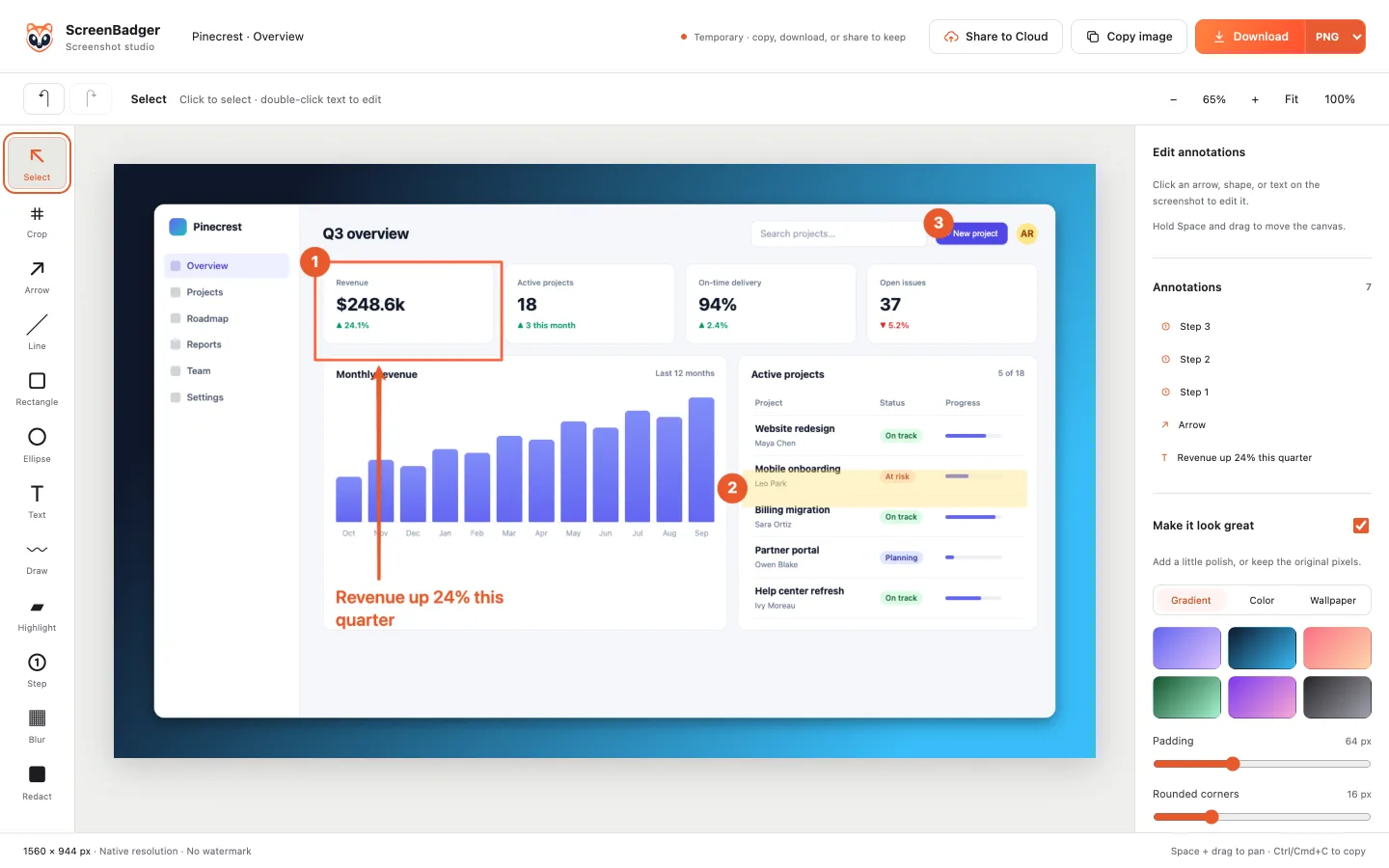
Add arrows, lines, shapes, multiline text, freehand drawing, highlights, and numbered steps. Select any mark to move, resize, rotate, restyle, duplicate, reorder, or delete it.
- Numbered steps for instructions
- Highlights and freehand drawing
- 50-step undo and redo
Redaction
Hide private details before you send it.
Blur a region or cover it with an opaque redaction box. Use redaction when the content must be fully unreadable, such as account numbers or customer data.
- Blur for softer hiding
- Opaque redaction for sensitive data
Framing
Make a plain capture look finished.
Add a background, padding, rounded corners, and a shadow so a screenshot is ready for docs, slides, or a social post. Crop first to keep only the part you need.
- Gradient, color, or wallpaper backgrounds
- Padding, corner radius, and shadow
- Crop to the important area
Copy or download
Paste it anywhere in one step.
Copy image puts a flattened PNG on your clipboard, ready to paste into a chat, ticket, or doc. Download saves a PNG or JPEG at full resolution, with no watermark on any plan.
- Copy with Ctrl/Cmd+C
- Download PNG or JPEG with Ctrl/Cmd+S
- Free and never watermarked
FAQ
Questions about screenshot tool
Is the screenshot tool free?
Yes. Capture, annotation, framing, copying, and downloading are all free, and screenshots are never watermarked on any plan.
Can it capture a full scrolling page?
Yes. Full page capture scrolls the tab to load offscreen content and keeps full resolution up to 32,767 px per side and 64 megapixels. Larger pages are captured whole at a reduced scale. Close DevTools on that tab first. Infinite feeds and pages that scroll inside nested containers can’t be captured as one complete image.
Are my screenshots saved in the library?
No. Screenshots are kept in memory while the studio is open and are never uploaded unless you choose Share to Cloud. Copy, download, or share your image before you close or refresh the studio, because that discards it.
Can I share a screenshot with a link?
Yes, with the Cloud plan. Choose Share to Cloud in the studio to upload the finished image and get a link. Viewers can download it, react, and comment, and you can add a password or revoke the link at any time.
What file formats can I export?
You can download a PNG or a JPEG, or copy a PNG straight to your clipboard.
Related
Also included
Screenshot beautifier
Add gradient backgrounds, padding, shadows and a browser frame to any screenshot.
Learn moreBlur image
Drag boxes to blur, pixelate or block out sensitive parts of an image.
Learn moreFull page screenshot
Capture an entire scrolling page in Chrome, then annotate and download it.
Learn moreCloud sharing
Share a finished video or screenshot with a link or password, and see who viewed it.
Learn moreMake your next screen recording worth sharing.
Record, edit, and export in your browser. Free forever, no credit card required.